Purchase Order header and line dates may seem confusing at first but understanding them helps manage inventory delivery and availability effectively.
Purchase Order Header Fields
- Order Date – Defaults to the day the order is created. There are also system fields for Created Date and Last Modified date that are set in the background. If changed, the user will be asked if they want to update the lines and if they agree, it will recalculate all the order line dates from the Order date forward using the item lead time calculation, safety lead time, and/or inbound warehouse handling time. We do not recommend that users change this value and update the lines from this date.
- Document Date – This date is initially equal to the Order date but will change based on postings as it related to the calculation for the Due date. This should not be confused with the Order Date. This document date gets updated based on the Posting date.
- Due Date – This is the calculated Invoice / Payment Due date based off the document date. Purchasing should not use this field, as it often creates confusion. This date is the Posting Date + Terms Calculation and changes when the posting date changes.
- Requested Receipt Date – Typically do not recommend using at the header level, unless all Purchase Order Lines always have the same dates. This will be the default for all manually created lines. If changed, the user will be asked if they want to update the lines and if they agree, it will change all lines to the new value.
- Promised Receipt date – Typically do not recommend using at the header level, unless all Purchase Order Lines always have the same dates. This will be the default for all manually created lines. Adding a value here will make the Requested Receipt date non-editable on the header and lines (if updated). If changed, the user will be asked if they want to update the lines and if they agree, it will change all lines to the new value.
- Planned Receipt Date – Typically do not recommend using at the header level, unless all Purchase Order Lines always have the same dates. This will be the default for all manually created lines. If changed, the user will be asked if they want to update the lines and if they agree, it will change all lines to the new value.
- Expected Receipt Date – Typically do not recommend using at the header level, unless all Purchase Oder Lines always have the same dates. This will be the default for all manually created lines. If changed, the user will be asked if they want to update the lines and if they agree, it will change all lines to the new value.
Purchase Order Line Fields / Calculations
- Order Date – Defaults to the day the order is created – will recalculate on the line when the other order dates are calculated – Planned Receipt Date – Item Lead Time Calculation. Typically, this field is not really viewed by companies except at the header level. The system fields created and last modified dates are more often viewed for the date the line was created or changed as they do not change.
- Note – you may need to personalize the page to show this field if you need it (most companies do not show it).
- Expected Receipt Date – This is the date the items are available for use in the location it is calculated as Planned Receipt Date + Inbound Whse. Handling Time + Safety Leadtime. If manually entering a Purchase Order you can enter this field with the day you need the parts delivered, but it may be better to enter the Expected Receipt Date for manual orders.
- Planned Receipt Date – Set this date the same as the Requested Receipt Date. This is the date normally shown on the Purchase Order and the date the supplier needs to have the product delivered to your facility.
- Order Date – Defaults to the day the order is created – will recalculate on the line when the other order dates are calculated – Planned Receipt Date – Item Lead Time Calculation. Typically, this field is not really viewed by companies except at the header level. The system fields created and last modified dates are more often viewed for the date the line was created or changed as they do not change.
- Note – you may need to personalize the page to show this field.
- Note – you may need to personalize the page to show this field.
- Promised Receipt date – Set this date when the vendor confirms the Purchase Order, which will make the Requested Delivery Date non–editable.
Purchase Order Date Modifiers used for Calculations
Date modifiers add time between Requested and Planned Delivery Dates for tasks like receiving, inspection, and scheduling. However, excessive padding can delay urgent needs by increasing overall lead times.
- Inbound Whse Handling Time – Set on Inventory Setup Page and/or on the Location Card Page – This is time to allow for the processing of the receipts in receiving and / or quality. It can be used to allow time between physically receiving the Item and the time it will take to process the receipt in the system to get the inventory into stock for use. Time will be added between the Planned Receipt Date and the Expected Receipt Date.
- Safety Lead time – Set per item. It will add additional time between the Planned Receipt Date and the Expected Receipt Date. Some uses are:
- Transit times, especially for overseas orders where the supplier wants a ship date vs Delivery date.
- Scheduling buffer to get components for production early to allow time to schedule production orders earlier.
- Lead time Calculation - Set per item. Technically, this is not a date modifier as it is the actual lead time for the item from the vendor. This is used in the planning worksheet calculations. It is also considered when manually creating Purchase Orders to calculate the dates backward from the Requested / Planned Receipt dates and forward if using the order date.
Manual Purchase Order Date Calculation Using Item Lead Time Calculation
We do not see this process used very often. Typically Purchase Orders are created from the planning worksheet or when manually creating a Purchase Order because the Requested Receipt Date is known in advance. The calculations are the same as noted above when dates are changed on the Purchase Order Lines.
Forward Calculation - On the Purchase Order line the user can enter an Order Date (defaults to the current date and then the system will calculate forward the other line dates:
- Order Date + Lead Time Calculation = Planned Receipt Date
- Planned Receipt Date + Inbound Whse Handling Time + Safety Lead Time = Expected Receipt Date
- Note – you may need to personalize the page to show the Order Date field on the Purchase Order Lines page if you plan to use it this way.
Backward Calculation - If the user enters the Requested Receipt Date the system calculates backwards to the Order date:
-
Requested Receipt Date - Lead Time Calculation = Order Date
-
Requested Receipt Date + Inbound Whse Handling Time + Safety Lead Time = Expected Receipt Date
Overseas Vendor Purchase Order Handling with Safety Lead Time
Overseas vendors usually require a shipping date rather than a delivery date. One way to manage this is by using safety lead-time to account for transit duration. This causes the planned receipt date on the purchase order to adjust according to the safety lead time, so vendors need to ship at the appropriate times to ensure products arrive as expected.
Purchase Order Date Setting / Changing Scenarios
- Settings for Scenarios
- Item Lead time Calculation = 10 days
- Inbound Whse Handling time = 1 Day
- Safety Lead time = 5 Days
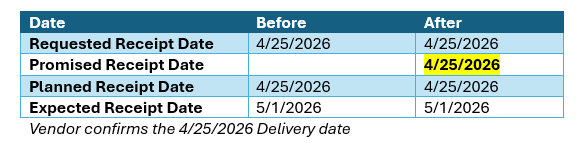
- Purchase Order is sent to the vendor and date (planned receipt date) is confirmed by the vendor, set the Promised Receipt Date to the same date as the Planned Receipt Date and Release the Purchase Order to indicate the Purchase Order has been confirmed.
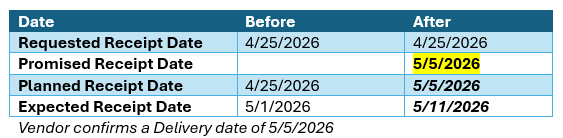
- Purchase Order is sent to the vendor, and the vendor confirms back with a revised date. Depending on your Purchase Order Policies you may update the Requested Receipt Date then the Promised Receipt Date on the initial confirmation, especially when ordering inside the vendor’s lead time. If you need to track and not change the original Requested Receipt Date, just set up the Promised Receipt Date. Release the Purchase Order after adjusting the dates to indicate the Purchase Order has been confirmed.
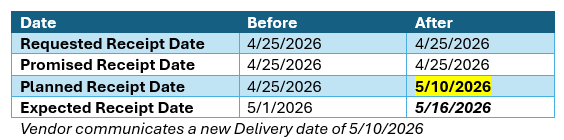
- Purchase Order is released; vendor notifies you that it will be late. Reopen the Purchase Order, Update the Planned Receipt Date which will recalculate all the dates except the Requested Receipt Date and Re-Release the Purchase Order.
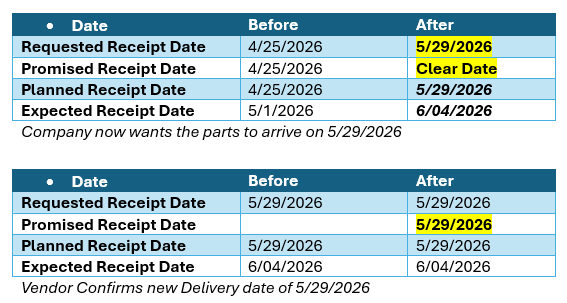
- The company needs to change the date due to rescheduling. Re-Open the Purchase order and adjust the Requested Receipt Date on the line. If a Promised Receipt Date has been set, it will need to be removed to change the Requested Receipt date. This would then be treated like a new Purchase Order confirmation and the when the vendor confirms the new Promised Receipt date can be entered and the Purchase Order Released.